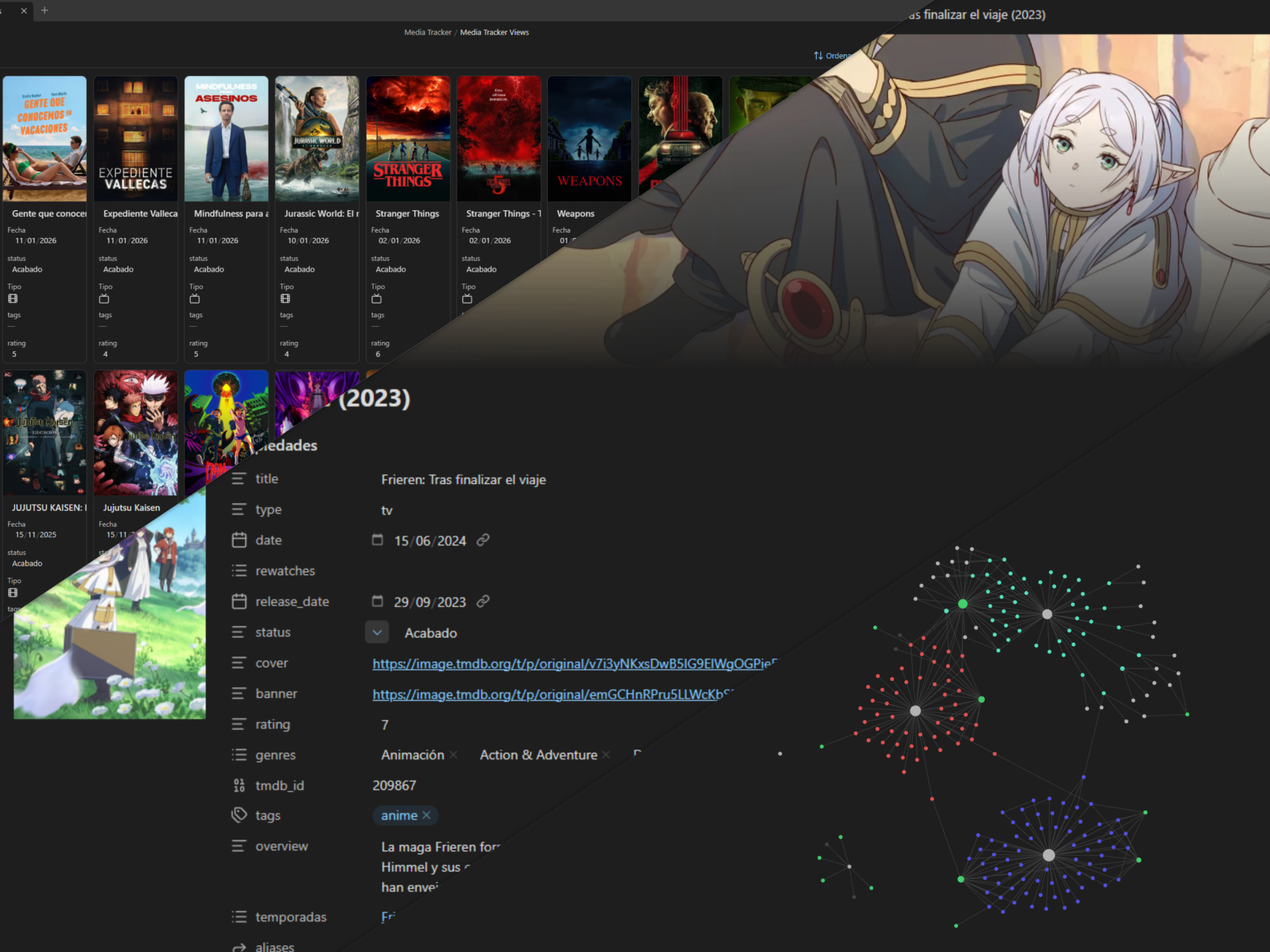
Welcome to the second part of the series “In search of the definitive multimedia record.” In this post, I will show you the main tool of my new media tracker.
In the previous post, I explained all the tools I used before this one. This post is probably going to be the most extensive of the three. My goal is to explain everything I have configured, including all scripts and settings, in case anyone wants to replicate what I’ve done. My new solution uses two tools, but this one is the heart of my media tracker. Let’s get into it.
The New Solution
For my new Media Tracker, I wanted to keep several points in mind:
- All my data must belong to me.
- Ability to migrate data to another application if necessary.
- Accessible from any device. Being able to add, delete, and edit any data, mainly from my phone, but also accessible from my computer.
- Ability to add comments, images, and videos to each element.
- Having a website that is easily accessible from any device and completely adaptable to my needs.
- Ability to add movies, series, and games in the same database comfortably.
After some research, I decided to go with Obsidian for creating and editing each element of the tracker. Due to Obsidian’s nature with Markdown, and my experience building my website and blog with Hugo, I decided to use it to generate my media tracker’s website. Although we’ll talk about that in the next post.
Obsidian
For those of you who know how Notion works, you might have raised an eyebrow in the previous post when I said that with Notion my data belonged to me; that isn’t true. In Notion, the data isn’t yours: they can revoke your access whenever they consider because they own it. So, it was time to make a move.
From one obsession to another, Obsidian came into my life. This tool is an application for taking notes in Markdown format. It allows you to create relationships between your notes to generate a graph. It is very similar to the structure of Wikipedia, where you can browse through different pages via relational links.
Thanks to my new acquisition, a mini PC, I could sync my notes very efficiently with Syncthing, as I already explained in my other post Six months with my first home server, which was the point that held me back the most from Obsidian. Now I’m going to explain how I have Obsidian configured for the Media Tracker. I might make a post in the future explaining how I have my entire Obsidian set up, as it seems like an incredible tool to integrate into your daily life.
Template
I didn’t plan on doing it, but in the end, I created a template with all the necessary files to make it work exactly as I have it. Configuring it in an existing vault can be somewhat tedious; it should have been a plugin, but I built it on the fly and didn’t think many people would use it, as it’s all tailored to my specific needs. You can download the vault, open it with Obsidian, and check how everything is set up.

christt105/media-tracker-obsidian-template
An automated Obsidian vault for tracking movies, TV shows, and video games.
If it gets enough support, I might consider making a specific plugin for Obsidian.
Organization
I decided to keep the Media Tracker inside my main Obsidian vault. The Media Tracker lives only in one folder; this way I prevent it from mixing with other notes and it’s easier to differentiate. Inside Juegos/, Movies/, TVs/, and Seasons/, individual instances of games, movies, series, and seasons live respectively; each element has its own note. I also have a Portadas/ folder where I store cover images and banners for elements that aren’t on the web, especially for fangames.
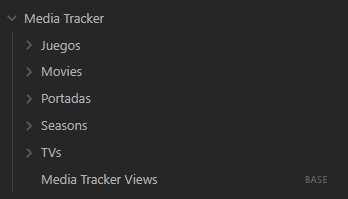
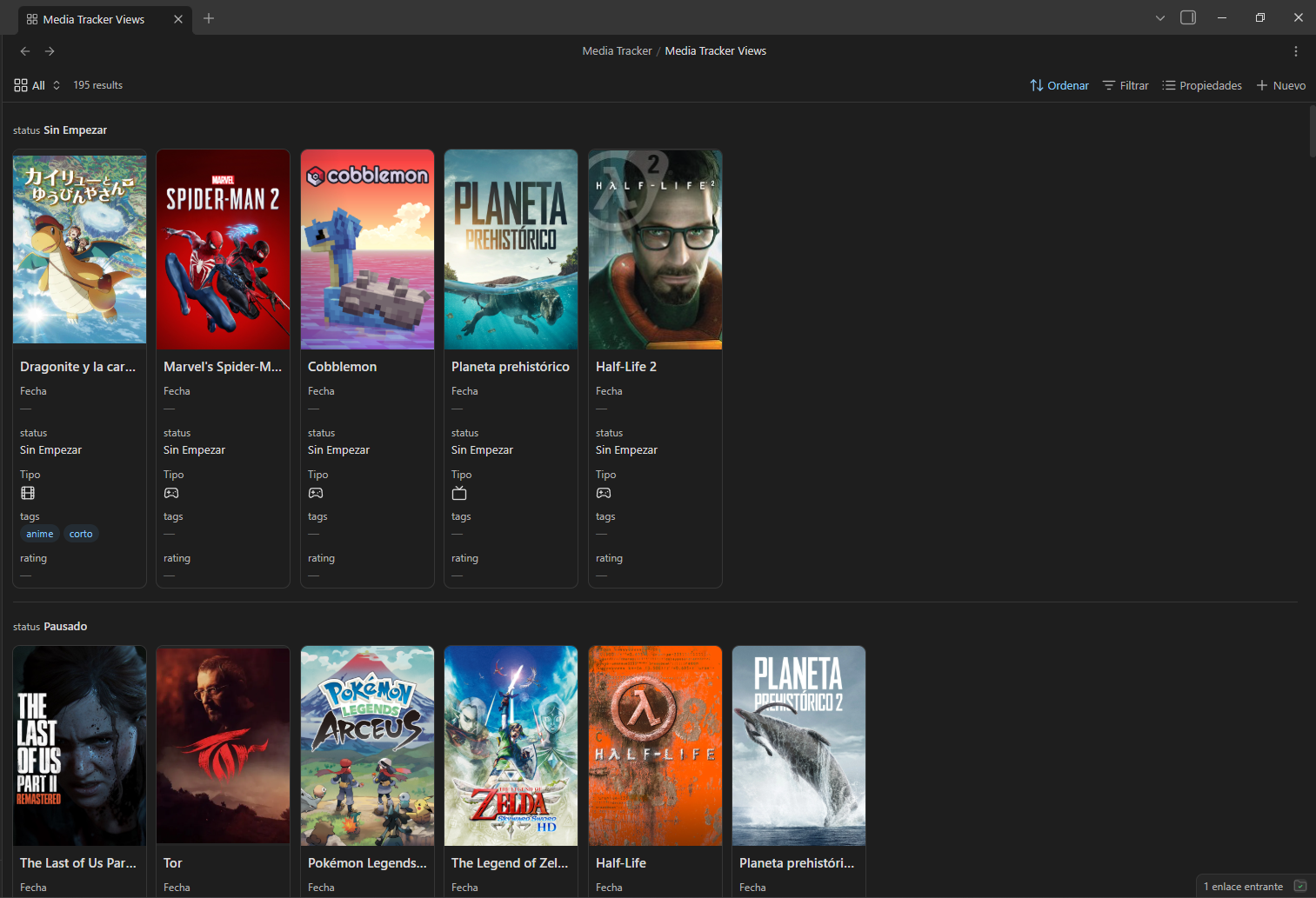
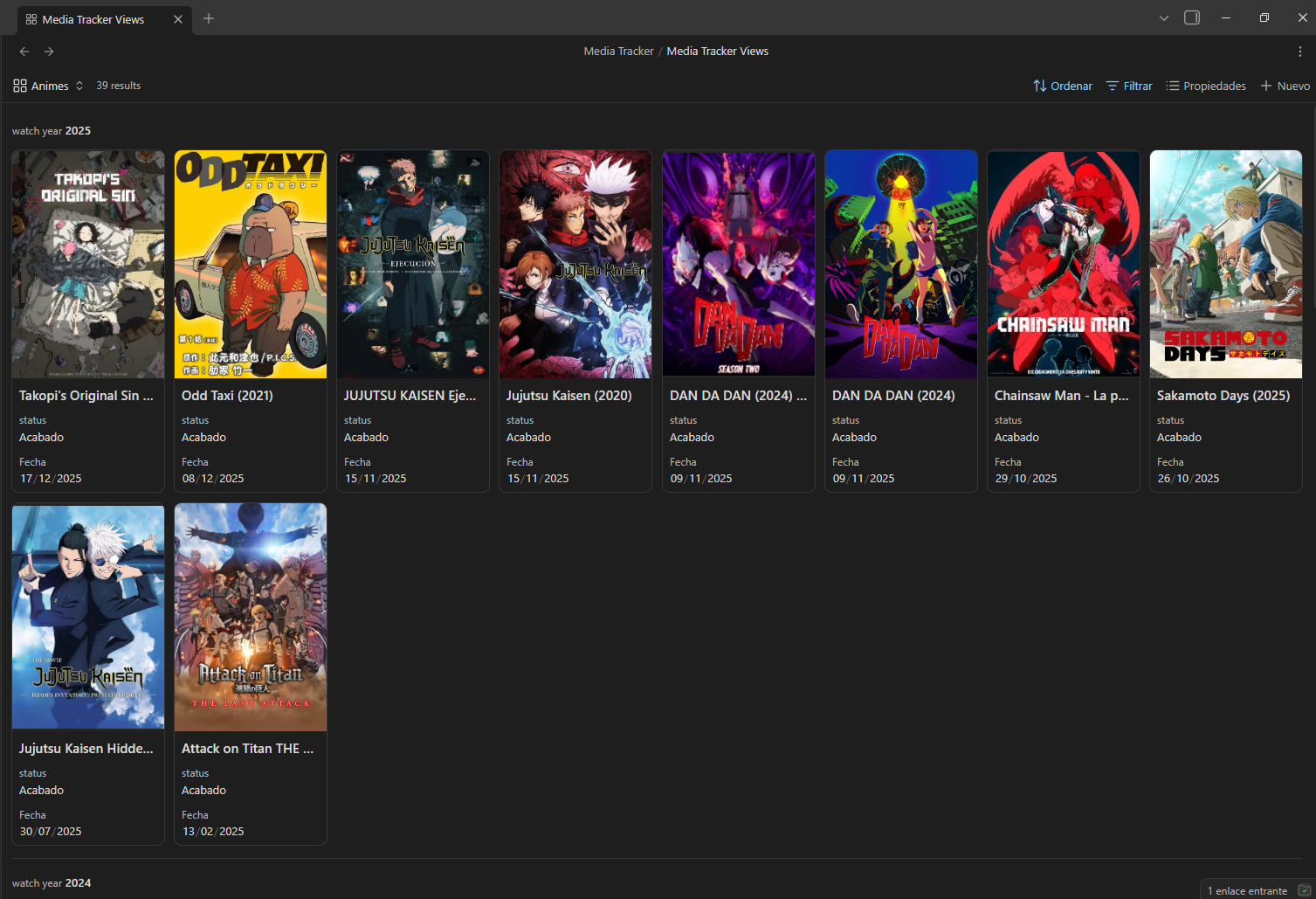
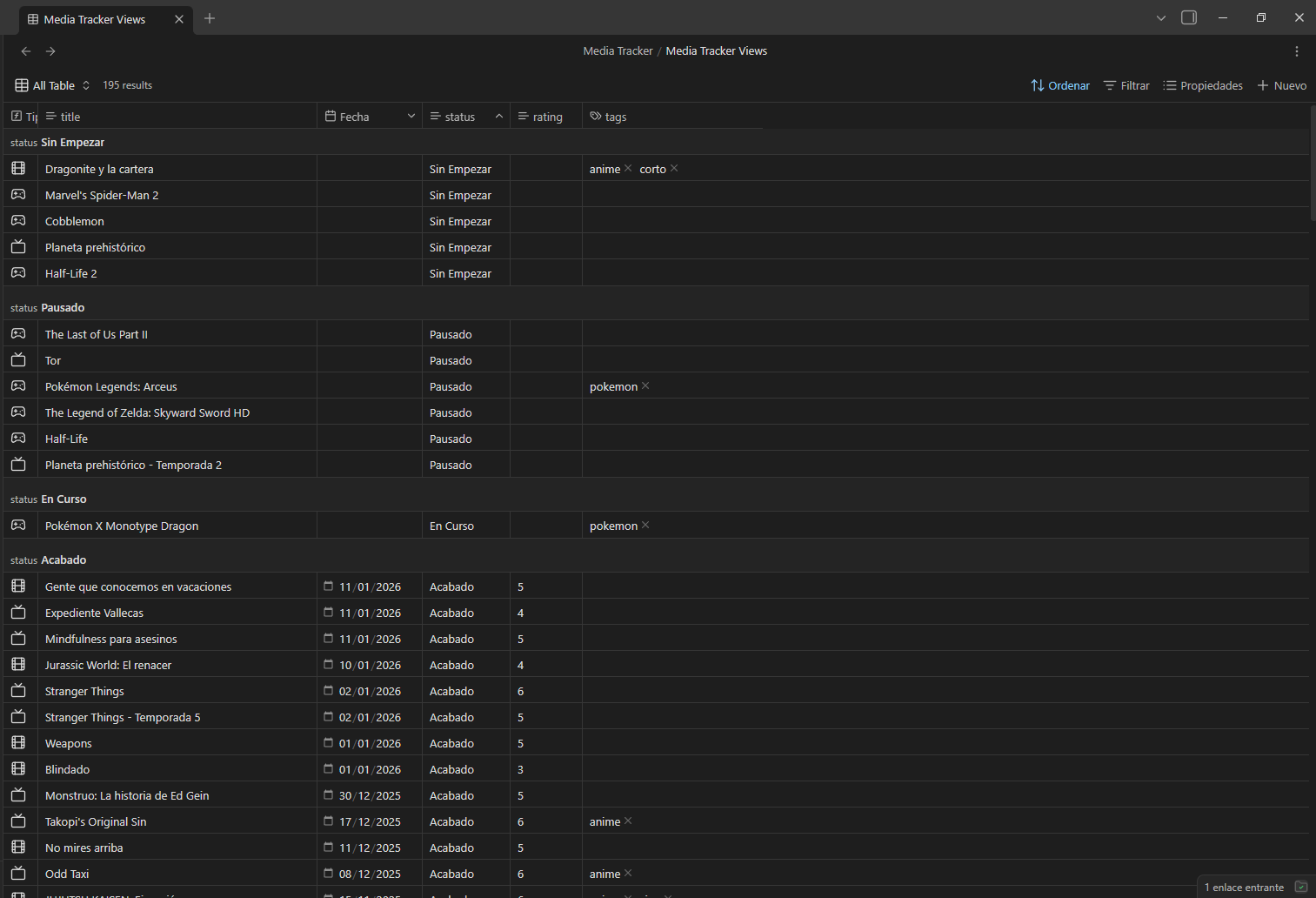
In Media Tracker/, there is the Media Tracker Views.base file, which is a database-type file with several views. Bases are a very recent addition; they were implemented just as I started using Obsidian. It’s a file that allows you to visualize your notes in various ways, similar to Notion views. It has an API, so the community is already starting to use them for more complex things. For now, I’ve only created very basic views and I barely use them since I have the website.
Series and Seasons
I had a problem with series. I didn’t know what to do with shows that have multiple seasons. On one hand, there are series with several seasons that I watch at different times, so I should separate each one, but on the other hand, making a duplicate series note can look weird if there is only one season. It’s also true that some series organize seasons very poorly, which can get chaotic.
That’s why I finally decided on a hybrid solution. Each series has its own note with the same properties as movies. If a series has only one season, the series note is used. If it has multiple seasons, a note is created for each season, and the date of the series note is updated to match the date of the last season watched.
The only downside is that I have to update two statuses and two dates for the same series (in the series note and in the last season’s note). I think it’s the most feasible solution to this problem.
Plugins and Scripts
One of the most incredible things about Obsidian is the customization through community plugins. It opens up a giant field of possibilities. I’ve mainly used three plugins that have made the experience much better than the previous solutions.
I really could have created a plugin that encompassed everything, but since I went step by step and didn’t have much experience with Obsidian, I added plugins and scripts as I needed functionalities. Let me explain how I have everything working.
Templater
The Templater plugin works great for using templates, executing actions, and adding information when creating new notes. This helps us import information from movie, series, and game databases and organize the notes instantly upon creation.
Movie Search
The Movie Search plugin is a bit old but still works very well. There are a few things I would change, but for now, it’s more than enough. It adds a button that opens a panel to enter the movie or series name. When searching, it queries the TMDB API and shows you the results.
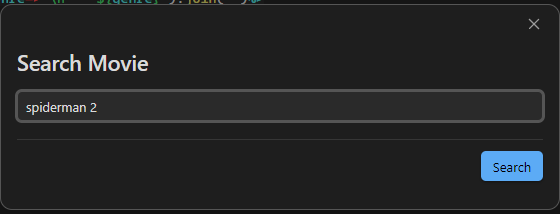
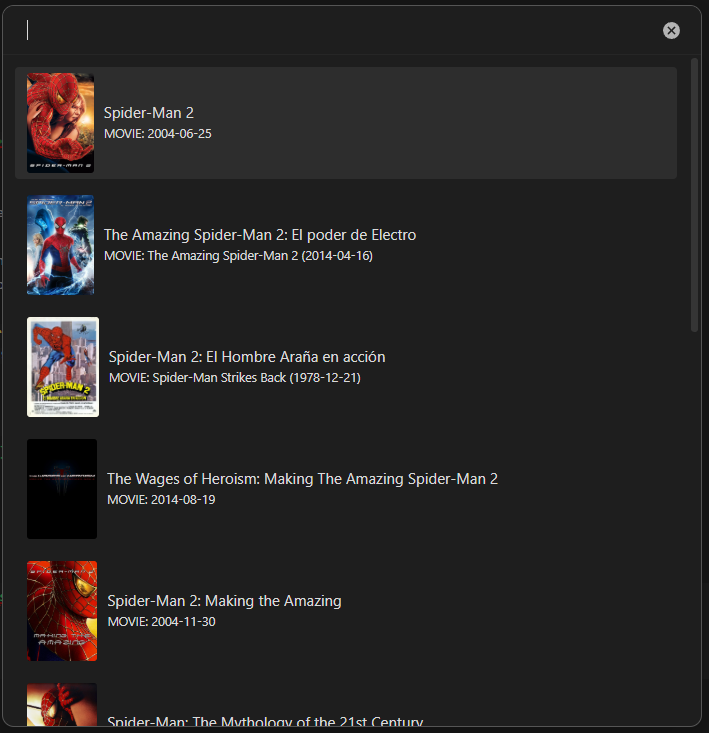
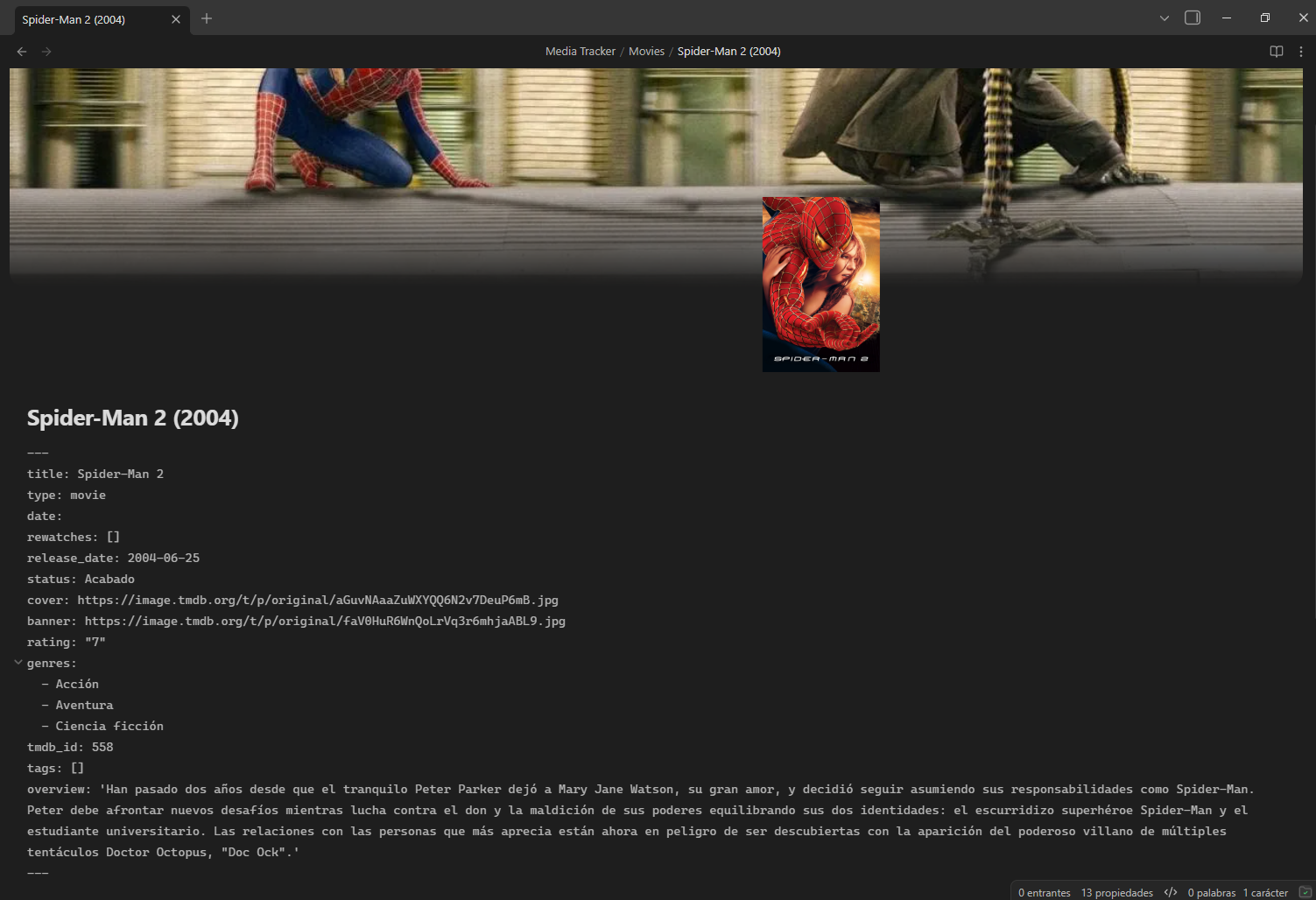
When selecting an option, it creates a new note with a configured template, replaces variables with the corresponding values, and executes the Templater code. TMDB has two types (movie and tv) which are added directly to the type property. A default poster and banner are assigned using the image link, and the TMDB ID is stored for future reference. Genres and the synopsis are also saved, formatting them correctly since the plugin has issues if they include slashes or double quotes. It also checks if it’s a series and adds the seasons property. Finally, it takes the year and modifies the filename to include it and avoid duplicates. The template I am currently using is this: Movie.md
And this would be the final result of the note:
QuickAdd
The QuickAdd plugin allows you to create scripts and execute them via actions. This way, I can easily edit my notes by accessing external APIs. The scripts are in JavaScript; most are made with AI and subsequently edited by me. These are some of the functions I’ve created:
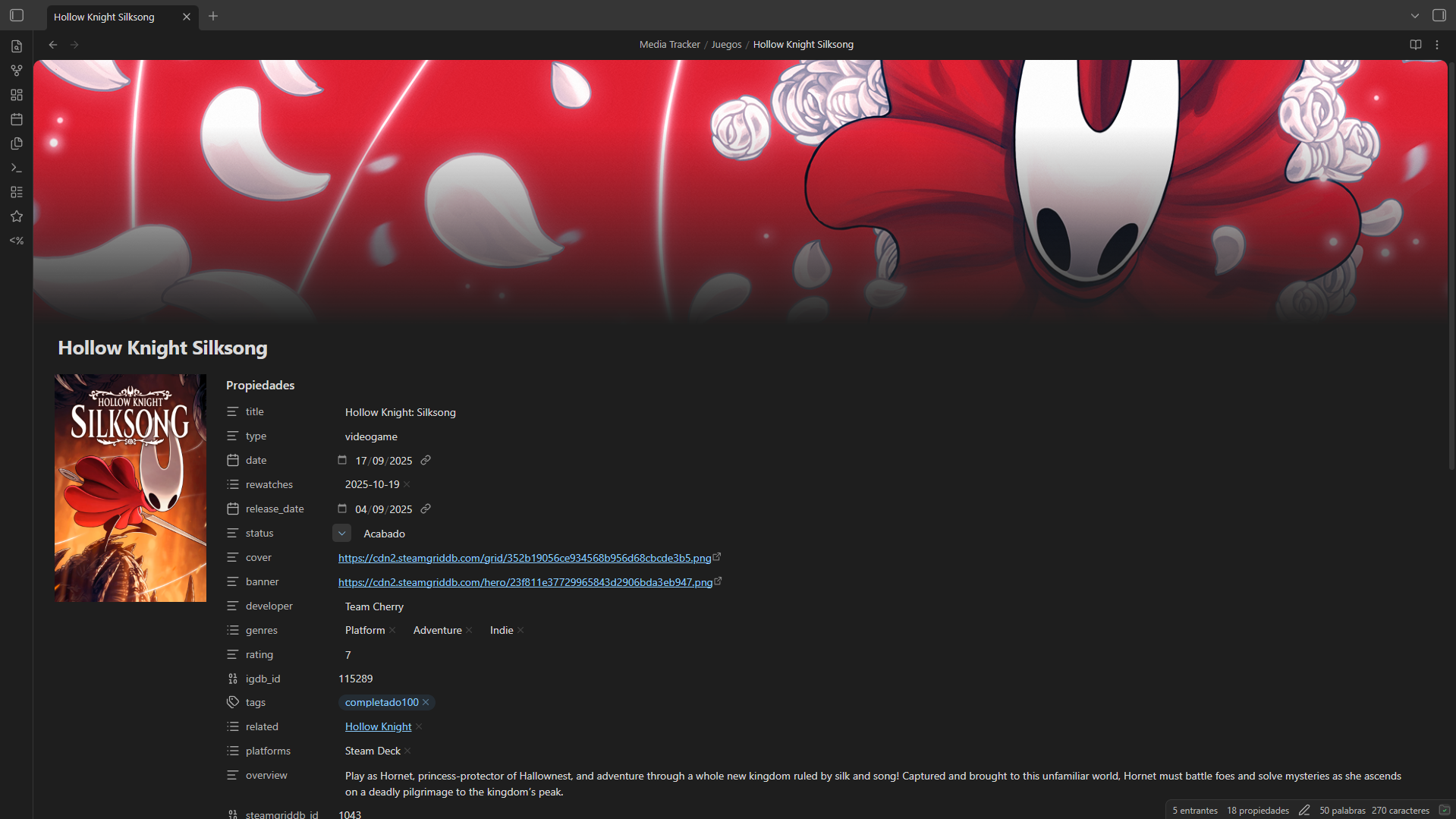
Add Game
For video games, I decided to use the IGDB database. To use their API, you have to log in with Twitch, which is a bit weird. Gaming databases are behind movie databases: they are usually in English and the information is incomplete. I chose IGDB because it was the only one that included the fangames I’ve played.
I used this script from Elaws/script_videogames_quickAdd and modified it for my template IGDB.md, resulting in this script. The workflow is similar to the movie search: you enter the name and select the option to create the note.
Create Season
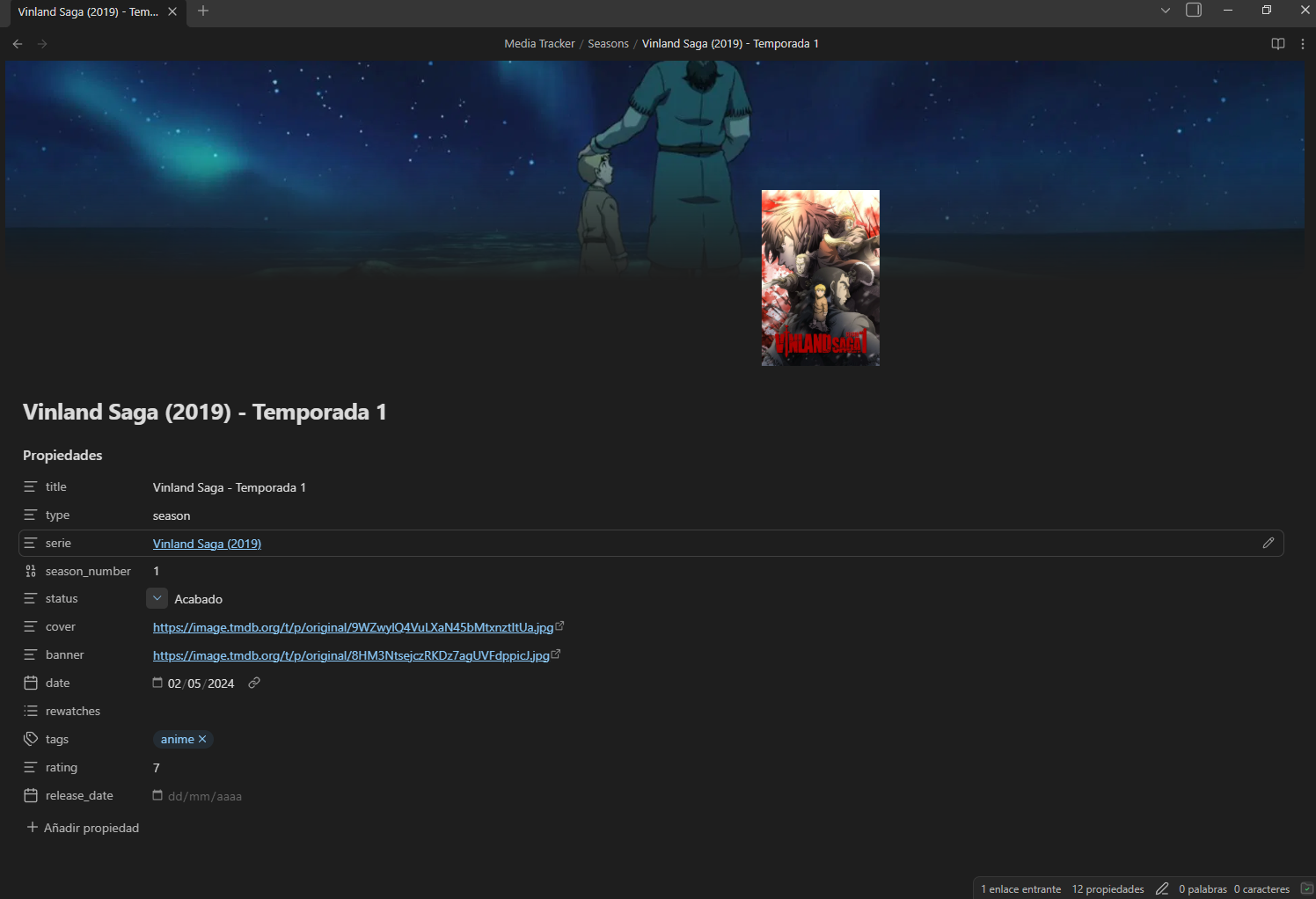
I needed a button to create a Season note from a Series note, carrying over all attributes and references. I made this script that checks if you are in a series note, asks for the season number, and generates the note using this template, adding " - Season X" to the name. The new note copies the series images and links them via the seasons and series properties.
Update Images
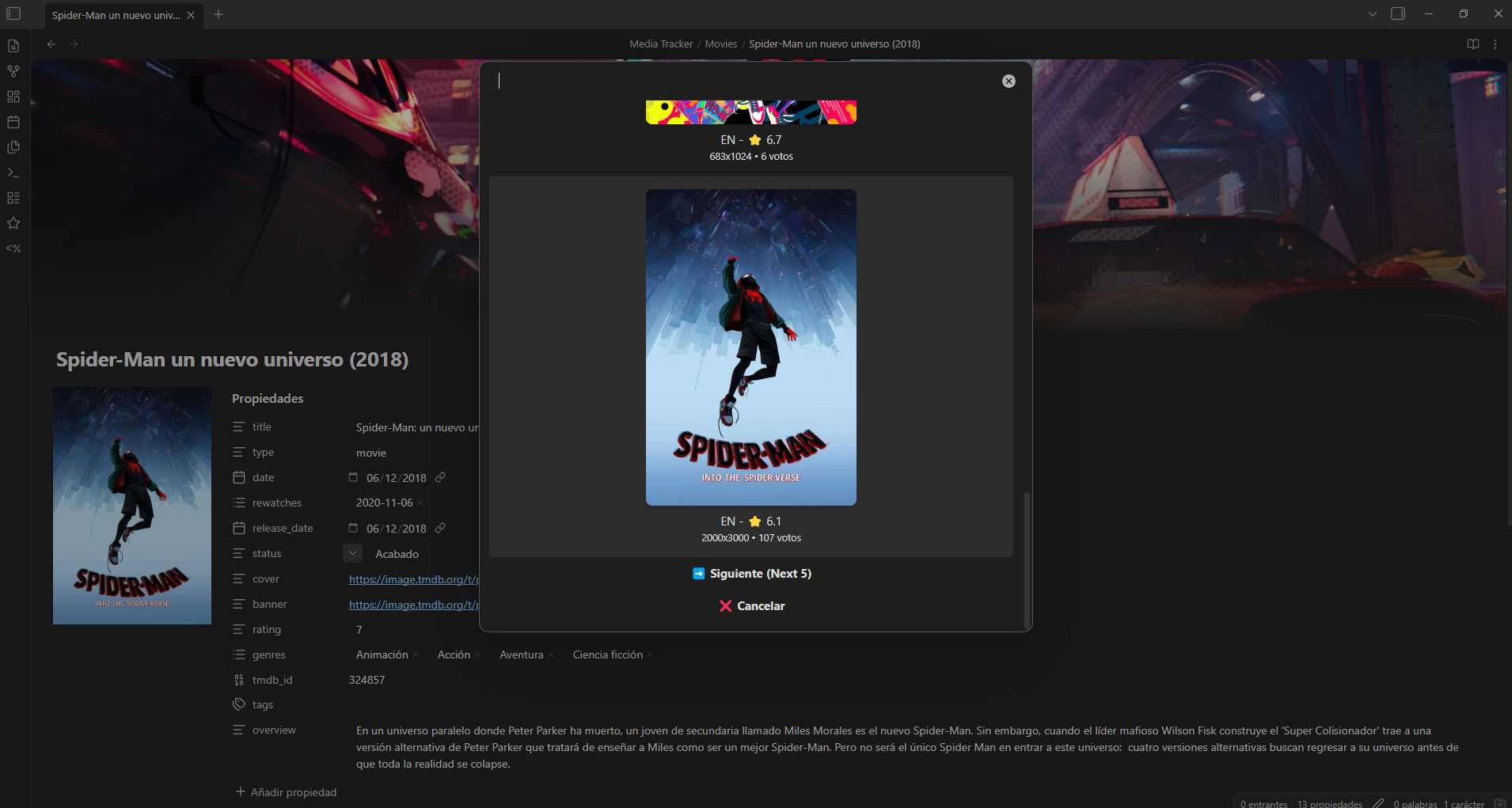
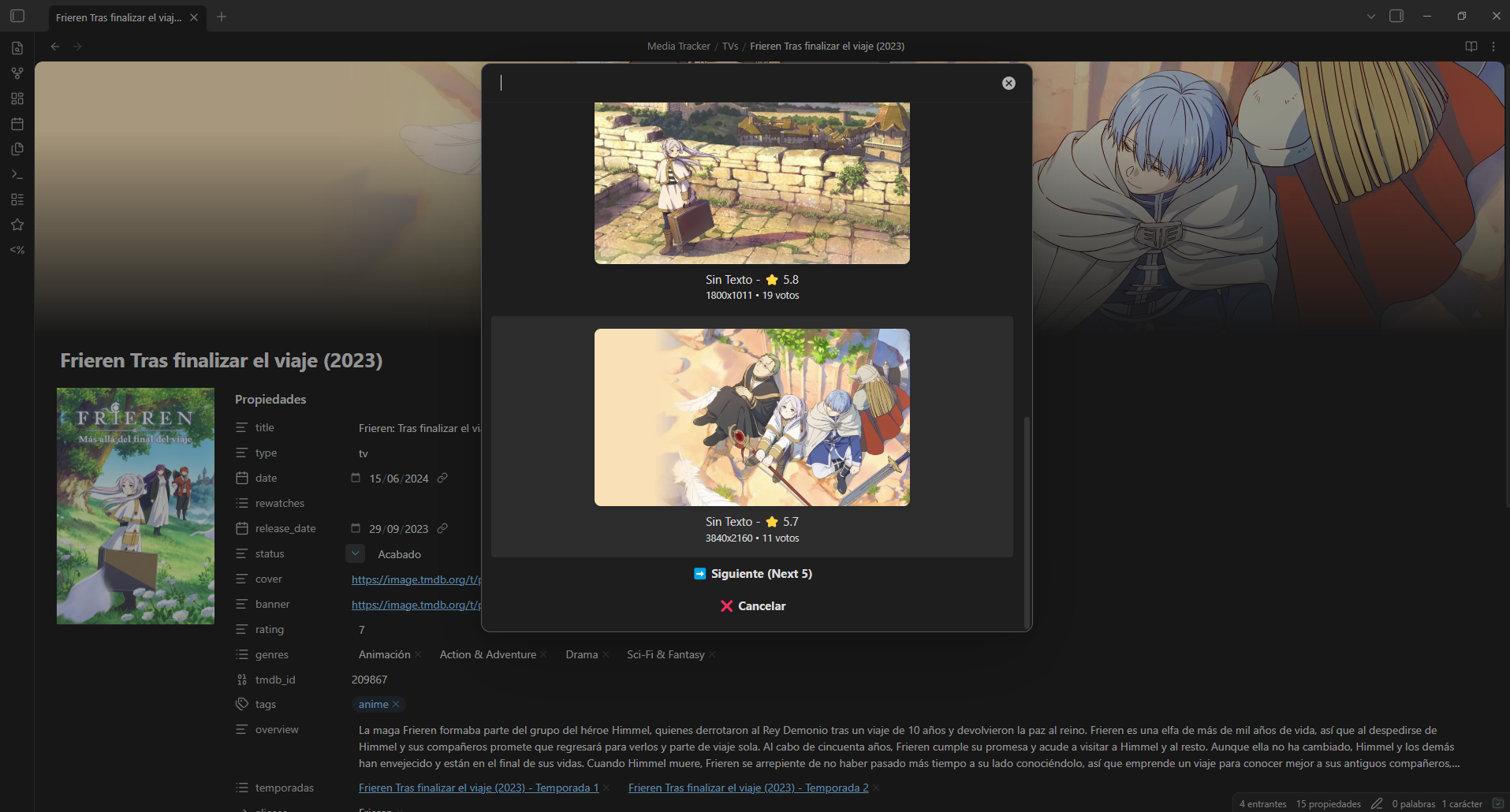
Using only the first image provided by TMDB or IGDB isn’t very customizable. I created this script that shows different images so you can pick the one you prefer. It works for both covers and banners. If it’s a movie, it searches on TMDB; if it’s a game, it uses the SteamGridDb API, as IGDB images are often low quality. The script first checks for a SteamGridDb ID; if not found, it searches by name and saves the ID for the future.
Steam ID
For the games from my old Notion base, I needed to save the Steam ID to generate store links and show official artwork. I created this script that searches the store and inserts the ID into the note.
Import scripts
If you want to import all these scripts directly, you can use the QuickAdd “import packages” tool with the file quickadd-package.quickadd.json.
Pretty Properties
Pretty Properties is a visual plugin I use to render covers and banners directly in each note’s properties.
Current Workflow
My workflow is as follows:
- Movies: If I watch it on Jellyfin, a plugin automatically marks it as watched on Simkl. If it’s at the cinema, I add it to Simkl manually. Then, in Obsidian, I create the note, set the status to “Finished,” assign my personal rating, and write my thoughts.
- Series: The workflow is the same, episode by episode. When I finish the season, I register it in Obsidian.
- Games: When I finish them, I add them and choose the images I like best.
Conclusions
With these tools, I have a very comfortable multimedia manager. Thanks to Obsidian and its scripts, I handle everything without leaving the app. The data are simple text files under my control, with automatic backups twice a day since they are in my personal vault.
This solution has nothing to envy commercial tools. From the initial list, only one point is missing: the website to share it with friends. Thanks to Hugo and the fact that Obsidian uses Markdown, it has been very easy, but we’ll see that in the next post.
I hope you liked it. I’ve taken a while to publish it because I wanted to have the template ready in case anyone wants to use it. If it’s useful to you, I’d appreciate a reaction or a star on the repository.
See you in the next post, where I’ll show how to create a site like this one with this data!
See you next time!